Make BestShareware.net your home page Add BestShareware.net to your favorites  

Homepage

Help Desk

Site Map

Popular

What's New

Featured
Search Software:
WWW         BestShareware.net
  MAC Software | Linux Software | Pocket PC | Free Games
 MP3 & Audio
CD Rippers
CD Burners
Audio Converters
Sound Recorders
Audio Editors
Audio Players
MP3 Sharing Tools
Audio Tools
All In One Tools
MIDI Tools
  Software Directories
DVD & Video
MP3 & Audio
Graphics
Applications
Internet
Security & AntiVirus
Development
PC Tools
Computer Games
  Related Software
Ease Audio Converter
MP3 To Ringtone Gold
MP3 RM Converter
Cool MP3 Converter
Quick MP3 WAV Converter
Quick All Audio Converter
iPod2PC

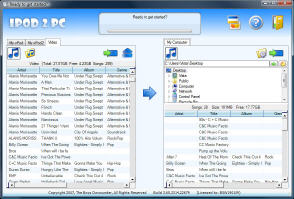
With iPod2PC you can easily copy/restore your songs, playlists, videos and podcasts from your iPod back to your iTunes music library or to any folder on your PC. It supports automatic import in iTunes, including your "My Rating", "Play Count" and "Last Played" information from the iPod songs. iPod2PC offers very fast searching and a browse mode which makes finding songs on the iPod easy. With the sophisticated song selection method (via context menu), choosing desired groups of songs for copying is also very fast and easy. Just do a right click on any song in the song list to invoke the special context menu, which enables you to check/uncheck all or specific groups of songs for copying. The list of shown songs can be sorted ascending/descending by songname, artist, album and other properties by clicking on the header of a column..


Software Information System Requirements
Version:2.14
  • Windows XP or Windows 2000.
  • PC-formatted iPod
File Size:1.76 MB
License:Free to try, $12.50 to buy
Screenshot:View Screenshot
Rating :

Key Features of iPod2PC :
  • Works with all song types on the iPod (MP3, AAC, Wave, AIFF, Audible)
  • Doesn't overwrite existing songs in your iTunes library
  • Unicode support
  • iPod2PC can run directly from the iPod, wherever you are... always available
  • Multiple iPod support
  • No extra runtimes for your OS needed, no VB, .NET or Java VM
  • No changes are made to your OS
  • No installation required, unzip where you like and start
Using iPod2PC
    To copy songs with iPod2PC do the following steps:

  • Read the iPod hints, otherwise iTunes might delete your iPod!
  • Connect your iPod. In iTunes make sure the iPod Options have "Enable disk use" checked. The iPod drive must be visible in the Explorer. To open the iPod Options choose in iTunes from the File menu "iPod Options".
  • Start iPod2PC and click the Scan button. If you have multiple iPods connected you can choose which one you want to use, otherwise iPod2PC starts scanning for songs immediately.
  • From the File menu select "Choose target folder", the folder in which iPod2PC will copy songs. This is only necessary once after installation but can be changed at any time. During copying, iPod2PC creates, like iTunes, a folder structure of artist/album and copies the files accordingly to their ID3 tags into the right folders inside your target folder. The file name will be the track number + song name.
  • If desired use the search and/or browse feature to find desired songs.
  • In the song list you see a column "Copy". Mark the checkboxes of the songs you want to copy. Remember that you can also use the context menu to easily mark groups of songs for copying when you right-click on a song in the list.
  • When you have marked all songs you want to copy press the "Copy"-Button.
  • When iPod2PC has finished, open iTunes and choose "Add Folder to Library". In the upcoming file selector choose the target folder where iPod2PC copied songs into.
Important iPod hints
    If your iPod is set to "Automatically update all songs and playlists", iTunes will update the iPod with your current library when you connect it.
    This is a nice feature, but keep in mind the following two cases:

    1.) Your iPod contains songs, which you accidentally lost in your music library.
    All songs, that doesn't exist in your music library anymore will be deleted from the iPod if you connect it and iTunes does the update. To supress the update, activate iTunes, plug the iPod in and immediately hold down Shift + Ctrl + Alt until the iPod is shown in iTunes source list. After that you can start restoring your songs.

    2.) You want transfer songs from your iPod to another PC with installed iTunes.
    If you have also activated the setting "Open iTunes if this iPod is attached", iTunes opens and ask you about to replace the content of your iPod with the current music library. If you click "Yes" iTunes will delete all songs on the iPod, which are not in the current music library. And this were the songs you want to transfer...
    So always answer with "No" !
    You can supress this dialog with Shift + Ctrl + Alt also.

    You can deactivate the automatically update by setting the iPod preferences to "Manually manage songs and playlists". You find this setting here: In iTunes click in the lower right corner on "Display iPod options"

  Submit Software | Privacy Policy | Terms of Use | Advertise with Us | Contact Us
 Copyright © BestShareware.net. All rights reserved.